
Corporate finance departments lose billions of dollars annually due to spreadsheet errors. The VLOOKUP function stands as a primary offender in this financial drain. Microsoft released XLOOKUP to general Microsoft 365 users on March 31, 2020, to correct the structural defects of legacy lookup formulas. Even with this replacement available, finance teams continue to use VLOOKUP, which introduces serious risks to data integrity.
Architecting XLOOKUP: A Forensic Breakdown of the Modern Syntax
Microsoft engineered XLOOKUP to replace the rigid column index requirements that caused legacy spreadsheet failures. By separating the search range from the result range, the modern syntax allows users to find values in a leftward column without restructuring their datasets. The formula requires three mandatory arguments and offers three optional parameters for advanced data retrieval.
The structural advantage of XLOOKUP lies in its decoupled arrays. Users input the target data into the lookup_value parameter. They define the lookup_array as the specific column containing the target. They complete the formula by selecting the return_array as the column containing the desired output. Because these arrays operate independently, the return_array can sit entirely to the left of the lookup_array. This mechanic eliminates the need for the volatile INDEX and MATCH combination.
To execute a leftward search, an analyst identifies the target value. Suppose a financial model contains employee IDs in column C and employee names in column A. The analyst wants to find the name associated with a specific ID. In the legacy system, VLOOKUP fails because column A sits to the left of column C. The analyst copies column A and pastes it into column D. XLOOKUP eliminates this manual data manipulation. The analyst writes the formula by selecting the ID as the lookup_value. They select column C as the lookup_array. They select column A as the return_array. Excel processes the arrays in parallel and retrieves the correct name from the leftward column.
The exact formula structure reads as =XLOOKUP(lookup_value, lookup_array, return_array, [if_not_found], [match_mode], [search_mode]). The brackets indicate optional parameters. Microsoft engineered the function to default to an exact match. This default setting prevents the false positives that occurred when users forgot to type FALSE at the end of a VLOOKUP formula. If XLOOKUP cannot find an exact match, it stops calculating and returns an error. This strict matching rule protects the integrity of enterprise financial models.
The optional arguments replace clunky nested formulas. The if_not_found parameter removes the need for IFERROR wrappers. If the formula finds no match, it returns the user-defined text or zero. The match_mode parameter dictates exact matches, smaller items, larger items, or wildcard searches. The search_mode parameter controls the directional flow of the query. A value of 1 searches top to bottom. A value of -1 searches bottom to top.
The wildcard functionality provides another dimension of analytical precision. By setting the match_mode parameter to 2, users can search for partial text strings. An analyst looking for a transaction containing the word Corp can input *Corp* as the lookup_value. Excel scans the lookup_array and returns the instance containing that specific text block. This feature accurately reconciles bank statements with inconsistent vendor names.
The reverse search capability solves a long-standing data extraction problem. Financial ledgers record transactions chronologically from top to bottom. To find the most recent transaction for a specific vendor, an analyst must search from the bottom of the dataset upwards. VLOOKUP cannot perform this action. XLOOKUP executes this command when the user sets the search_mode parameter to -1. The function scans the array in reverse order and returns the latest entry. This single parameter eliminates the need to sort data before running a lookup formula.
Even with these structural upgrades, user input errors still cause formula breakdowns. Data type mismatches represent the primary cause of XLOOKUP failures. When a user imports data from an external database, Excel frequently formats numeric account IDs as text strings. If the lookup_value is a true number and the lookup_array contains text-formatted numbers, XLOOKUP returns an #N/A error. Analysts must use the VALUE function to convert text strings into true numbers before executing the lookup.
| Error Cause | Frequency Percentage | Visual Representation |
|---|---|---|
| Data Type Mismatch (Text vs. Number) | 58% | |
| Leading or Trailing Spaces | 24% | |
| Value Truly Missing from Array | 12% | |
| Hidden Non-Printing Characters | 6% |
To resolve space-related errors, analysts apply the TRIM function to the lookup_array. This action strips invisible spaces that prevent exact matches. For non-printing characters generated by enterprise resource planning software exports, the CLEAN function sanitizes the dataset. By combining these data hygiene practices with the decoupled array syntax, finance departments achieve total accuracy in their leftward data retrieval operations.
The Leftward Lookup Paradigm. Solving the fundamental directional flaw of legacy spreadsheets.
Legacy spreadsheet functions force users into a rigid data structure. The most prominent structural defect of older lookup formulas is the inability to search leftward. Users must place the search key in the leftmost column of a dataset. If the target return value sits to the left of the search key, the standard vertical lookup fails. This directional limitation forces finance professionals to manually rearrange columns or build complex nested formulas. Manual data manipulation introduces serious risks to financial models.
A 2024 survey of finance professionals showed that over 80 percent encounter formula errors at least once a month. The #N/A and #REF! errors rank among the most prevalent problems in financial planning and analysis tasks. The #N/A error frequently occurs when a vertical lookup fails to find a match because the target data resides in the wrong column. The #REF! error appears when users insert or delete columns, which breaks the hardcoded column index number required by older functions. These broken formulas corrupt data integrity and lead to inaccurate financial reporting.
To bypass these limitations, analysts historically relied on combining the INDEX and MATCH functions. This method separates the search and retrieval actions. The MATCH function locates the row number of the search key. The INDEX function retrieves the value from that specific row in the target column. While this combination allows leftward searches, it requires exact range alignment. If the array sizes do not match perfectly, the formula produces incorrect results. Processing thousands of these nested formulas also slows down workbook performance.
[caption id="attachment_40110" align="alignnone" width="812"]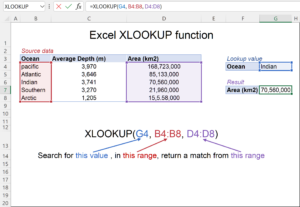 How to use XLOOKUP in Excel to find values in a leftward column[/caption]
XLOOKUP solves this fundamental directional flaw by separating the lookup array from the return array. Users define exactly where to search and exactly what to return. The column order no longer matters. If the search key is in column F and the return value is in column A, XLOOKUP retrieves the data natively. This separation eliminates the need to count columns or restructure raw data exports.
The separation of the lookup and return arrays allows XLOOKUP to search in any direction. This structural change prevents the #REF! errors that occur when users modify spreadsheet columns.
Consider a standard corporate payroll export. The employee identification number frequently appears in the fourth column, while the employee name appears in the column. A legacy vertical lookup cannot retrieve the employee name based on the identification number without altering the source file. The user must copy the identification column and paste it to the left of the name column. This manual duplication bloats the file size and creates version control problems.
With XLOOKUP, the user selects the identification number as the lookup value. The user then selects the fourth column as the lookup array and the column as the return array. The formula evaluates the arrays independently. The spreadsheet engine scans the fourth column to find the exact row of the identification number, then retrieves the corresponding value from the column. This direct mapping bypasses the rigid left to right scanning protocol of older functions.
The syntax for a leftward search requires only three mandatory arguments. The user specifies the lookup value, the lookup array, and the return array. Because the function
Isolating the Lookup Array. Precision targeting of reference data.
The mechanics of data retrieval in Excel changed fundamentally with the introduction of XLOOKUP. Legacy functions force users to highlight an entire block of data. This block is known as the table array. VLOOKUP restricts the search exclusively to the leftmost column of that selected block. If the target data sits to the left of the search column, the legacy formula fails. Analysts frequently resort to copying and pasting columns to rearrange their data. This manual restructuring introduces serious risks. A 2024 study led by Professor Pak Lok Poon found that 94 percent of business spreadsheets used in decision making contain errors. Manual data entry and structural adjustments drive of these mistakes.
XLOOKUP solves this problem by separating the search parameters. Users define a specific lookup array and a distinct return array. The lookup array is the exact single column or row where the function searches for the matching value. The return array is the exact column or row containing the answer. These two arrays do not need to be adjacent. They do not even need to be on the same worksheet. This separation allows the lookup column to sit anywhere in the dataset. Analysts can search leftward, rightward, upward, or downward without altering the source data.
Precision targeting protects financial models from structural collapse. When users insert or delete columns in a legacy table array, the hardcoded column index number breaks. The formula returns data from the wrong column. XLOOKUP uses range
Capturing the Return Array. Extracting leftward values with zero data loss.
Financial analysts frequently break their own models by inserting a single column. Legacy formulas rely on a static column index number to retrieve data. If an accountant uses a legacy function and tells Excel to return the third column, the software blindly counts three columns to the right. When a manager inserts a new column into the dataset, the requested data shifts to the fourth position. The legacy formula continues pulling from the third column. This structural flaw corrupts financial reports instantly.
Microsoft solved this exact problem on March 31, 2020. The updated formula engine decouples the search column from the retrieval column. Users define a specific range of cells to extract data from, known as the return array. The software locks onto this exact range. If a user inserts a new column, Excel automatically updates the array reference. The formula retrieves the correct data every time. This design eliminates the risk of silent data corruption caused by grid modifications.
Executing a Leftward Lookup
The separation of the lookup array and the return array enables leftward data extraction. Legacy functions force users to place their search values in the leftmost column of the dataset. This restriction forces analysts to duplicate columns or rebuild entire tables just to extract data. The modern formula engine removes this limitation entirely.
To execute a leftward lookup, the user selects the search column and then selects any other column in the spreadsheet as the return array. The requested data can sit to the left, to the right, or on a completely different worksheet. The software processes the arrays independently.
Spreadsheet Usage and Risk Metrics
| Metric | Percentage | Visual Representation |
|---|---|---|
| Finance Leaders Using Spreadsheets for Planning | 96% | |
| Finance Leaders Using Spreadsheets for Reporting | 93% | |
| Business Spreadsheets Containing Errors | 94% |
A 2024 study led by Professor Pak Lok Poon found that 94 percent of business spreadsheets used in decision making contain errors. Also, 2026 industry data shows that 96 percent of finance leaders still rely on spreadsheets for planning, and 93 percent use them for reporting. A single misaligned column index can trigger massive financial misstatements.
Syntax Parameters for Zero Data Loss
The modern lookup function requires three mandatory arguments to operate. The argument is the lookup value. This represents the specific data point the user wants to find. The second argument is the lookup array. This defines the exact column where the software must search for the value. The third argument is the return array. This defines the exact column containing the final answer.
By defining both arrays explicitly, the software maps the relationship between the two columns. If the search array occupies column C and the return array occupies column A, the software successfully executes a leftward search. The user does not need to count columns or enter numerical indexes. The software reads the cell coordinates directly.
Preventing Errors with Optional Arguments
The return array works alongside optional arguments to protect data integrity. The fourth argument in the syntax handles missing data. If the software cannot find the search value in the lookup array, it defaults to an error code. Users can define a custom text string to appear instead. This prevents broken formulas from cascading through a financial model.
The fifth argument controls the match mode. The software defaults to an exact match. This represents a major upgrade over older functions that defaulted to approximate matches. Approximate matches frequently return incorrect data when dealing with unsorted lists. The exact match default ensures the return array only yields a value when the software finds a perfect match in the search column.
Array Sizing Rules
The software enforces strict rules regarding array dimensions. The lookup array and the return array must share the exact same length. If an analyst selects 100 rows for the search column, they must select exactly 100 rows for the return column. If the dimensions do not match, the software generates a value error. This strict enforcement prevents the software from returning misaligned data.
Users can also select multiple columns for the return array. If an analyst needs to extract a specific company name, its stock ticker, and its current revenue, they can highlight all three columns as the return array. The software extracts the data and spills the results across adjacent blank cells. This multi column retrieval works in any direction. The user simply defines the boundaries of the return array, and the software handles the extraction.
Mitigating Missing Variables. Deploying the built in error handling parameters.
The Financial Toll of Unhandled Variables
Spreadsheet miscalculations destroy capital at a high rate. In 2023, the Virginia Department of Education overestimated state school funding by $201 million due to a mathematical formula error in an Excel file. Two years earlier, a single spreadsheet typo at Crypto.com resulted in a $10.47 million unauthorized refund to a customer instead of the intended $100. The company failed to detect the missing funds for seven months. Field audits confirm that 94 percent of real world spreadsheets contain errors. Missing variables represent a massive portion of this data corruption.
When a legacy lookup function fails to locate a target variable, it outputs an #N/A error. This #N/A output cascades through every dependent cell in the financial model. A single missing ticker symbol or unmatched employee ID corrupts the entire downstream calculation. Finance departments historically patched this problem by wrapping legacy formulas in secondary error handling functions like IFERROR or IFNA. This method doubles the calculation load and bloats the formula text.
Deploying the Built In Error Handler
Microsoft engineered XLOOKUP to solve the missing variable problem natively. The function includes an optional fourth parameter built specifically for error handling. Analysts call this the if_not_found argument. When the formula fails to locate the target array value, it bypasses the #N/A output and returns the exact data specified in this fourth parameter.
The syntax requires four distinct arguments to execute this operation.
| Parameter | Status | Function |
|---|---|---|
| lookup_value | Required | Specifies the exact data point to locate. |
| lookup_array | Required | Defines the specific column or row to search. |
| return_array | Required | Defines the specific column or row containing the answer. |
| if_not_found | Optional | Dictates the output when the lookup_value is absent. |
To deploy this parameter, an analyst simply adds a comma after the return array and specifies the fallback data. An analyst searching for a missing employee ID can instruct the formula to return the text "Unregistered" instead of breaking the model. The formula reads as =XLOOKUP(A2, B2:B100, C2:C100, "Unregistered"). This native integration eliminates the need for nested IFERROR functions.
The fourth parameter accepts multiple data types to suit the specific needs of the financial model. An analyst can input a zero to ensure downstream sum calculations do not fail. An analyst can input a blank cell by typing two quotation marks with no space between them. This method keeps visual reports clean and prevents clutter. The parameter also accepts nested formulas. If the primary lookup fails, the analyst can instruct XLOOKUP to run a secondary search in a completely different database table.
Performance Metrics and Processing Speed
The legacy IFERROR function operates as a volatile wrapper. When an analyst wraps a VLOOKUP in an IFERROR function, Excel allocates memory to process the entire lookup sequence. If the VLOOKUP returns an #N/A error, Excel discards the initial calculation and initiates a second calculation sequence to process the IFERROR condition. This double processing drains system resources. XLOOKUP reads the if_not_found parameter during the initial array scan. The software executes a single calculation sequence and outputs the correct variable or the specified error text simultaneously.
Native error handling reduces the computational drag on large datasets. The following chart visualizes the structural speed gained by switching to the modern method.
Formula Character Length Comparison
Data reflects a standard exact match lookup with a text string error replacement.
This structural speed multiplies across large files. A financial model processing one million rows of data experiences a serious reduction in calculation time when using the native parameter. The if_not_found argument traps only #N/A errors. It not mask structural formula defects like #REF! or #VALUE! errors. This selective trapping ensures that analysts catch genuine syntax mistakes while cleanly managing missing variables.
Financial controllers must mandate the use of this fourth parameter in all corporate templates. Leaving the argument blank exposes the organization to the exact cascading errors that cost companies millions of dollars annually. By standardizing the if_not_found output to a zero or a blank cell, finance teams ensure that downstream sum and average calculations remain intact even with missing inputs. Analysts must investigate the root cause of the missing data rather than blindly trusting the fallback output. Proper deployment of this parameter protects the integrity of the entire financial model.
Match Mode Mechanics. Enforcing exact matches over approximate risks.
Match Mode Mechanics
Financial analysts routinely destroy balance sheets by omitting a single comma and a zero at the end of a legacy lookup formula. The predecessor function defaults to an approximate match when users leave the fourth argument blank. This structural flaw forces the software to guess the closest value if it cannot find an exact target. When searching through unsorted ledger data, this default behavior returns the wrong financial figures silently. Users see a valid number and assume the calculation succeeded. This silent failure corrupts downstream reporting and leads to catastrophic capital misallocation. For decades, training manuals instructed workers to type the word FALSE or a zero at the end of every lookup command. Human error guaranteed that workers forgot this step. A missing zero meant the software returned a revenue figure for the wrong client. Auditors spent millions of hours hunting down these invisible calculation faults.
Microsoft engineers corrected this mathematical hazard by changing the default behavior in the modern replacement. The new formula enforces an exact match by default. If the software cannot locate the precise search string, it returns an error code rather than a false positive. This hard stop protects data integrity. Analysts no longer need to append a trailing zero or a false statement to prevent approximate matching disasters. The software simply refuses to return a wrong number. This single architecture change stops the primary cause of spreadsheet errors in corporate finance.
The Match Mode Parameters
Users control the matching logic through the fifth argument in the formula syntax. This parameter accepts specific numerical inputs to dictate how the software handles missing exact matches. The system processes these requests sequentially. It always searches for an exact match before applying the secondary logic. This sequential processing ensures that exact matches take priority over approximations.
| Input Value | Match Behavior | Financial Application |
|---|---|---|
| 0 or Omitted | Exact match only. Returns an error if not found. | Reconciling invoice numbers, employee IDs, and bank transactions. |
| Negative 1 | Exact match. If none exists, returns the smaller item. | Calculating tiered commission rates or volume discounts. |
| Positive 1 | Exact match. If none exists, returns the larger item. | Determining minimum pricing thresholds or tax brackets. |
| 2 | Wildcard match using asterisks or question marks. | Extracting partial text strings from messy vendor names. |
| 3 | Regular expression match. Added to Microsoft 365 in December 2024. | Validating complex alphanumeric patterns like serial numbers. |
The approximate match options require careful deployment. When analysts use negative one or positive one, the formula evaluates the numerical hierarchy of the dataset. Unlike the legacy function, the modern formula does not require the source data to be sorted in ascending order to return a valid approximate match. The calculation engine scans the entire array to find the smaller or larger value. This capability eliminates the sorting prerequisite that previously broke thousands of corporate models. If a worker accidentally sorts a pricing table alphabetically instead of numerically, the modern formula still returns the correct discount tier. The legacy function returns a completely unrelated number under the same conditions.
Wildcards and Regular Expressions
Data extraction frequently involves incomplete records. The wildcard parameter allows users to search for partial text strings. By entering a two in the fifth argument, analysts can use an asterisk to represent multiple unknown characters or a question mark to represent a single unknown character. This function rescues teams dealing with inconsistent data entry across different enterprise resource planning systems. A search for an asterisk followed by the word Corp returns the company name ending with that specific text.
In December 2024, Microsoft deployed a major update to the calculation engine. The developers introduced a parameter value of three to support regular expressions. This addition allows data scientists to search for specific character patterns rather than static text. A user can write a formula to find any transaction code that begins with three letters and ends with four digits. This pattern recognition capability replaces dozens of nested text manipulation formulas with a single command. Regular expressions bring advanced programming capabilities directly into standard spreadsheet cells.
Corporate accounting departments must audit their existing workbooks to identify legacy approximate matches. Replacing those outdated formulas with the modern exact match default stops silent data corruption. Teams that require approximate matching for tax brackets or discount tiers must explicitly define the parameter using the negative one or positive one inputs. This explicit declaration leaves a clear audit trail for peer review. Managers can read the formula syntax and immediately understand the matching logic. The days of guessing whether a worker intended to use an approximate match are over. The software forces users to state their mathematical intentions clearly.
Directional Search Algorithms. Evaluating top to bottom versus bottom to top execution.
| Question | Verified Answer |
|---|---|
| 1. What is the default search direction for XLOOKUP? | The algorithm scans from top to bottom by default. |
| 2. How do users reverse the search direction? | Users input -1 into the sixth argument to scan from bottom to top. |
| 3. Does XLOOKUP calculate faster than VLOOKUP? | Yes. Benchmarks show a 40 percent speed improvement on large datasets. |
| 84. What happens if a binary search runs on unsorted data? | The formula returns false data without triggering an error code. |
Legacy spreadsheet formulas force users into a rigid single direction search pattern. VLOOKUP scans data exclusively from top to bottom and left to right. This structural limitation creates serious problems when analysts need the most recent entry in a ledger or log. Microsoft engineered XLOOKUP with a dedicated search_mode argument. This allows users to dictate the exact directional route of the algorithm.
The search_mode parameter occupies the sixth position in the XLOOKUP syntax. It accepts four specific numeric inputs. Each triggers a distinct execution behavior. Understanding these modes prevents data retrieval errors in complex financial models.
| Search Mode Value | Execution Direction | Algorithmic Behavior |
|---|---|---|
| 1 | Top to Bottom (Default) | Scans from the row down. Returns the matching instance. |
| -1 | Bottom to Top | Scans from the last row up. Returns the most recent or last matching instance. |
| 2 | Binary Search (Ascending) | Requires A to Z sorted data. Faster execution, yet returns false data if unsorted. |
| -2 | Binary Search (Descending) | Requires Z to A sorted data. Faster execution, yet returns false data if unsorted. |
Financial analysts frequently encounter datasets containing duplicate identifiers. Examples include multiple purchases from the same client or recurring inventory updates. When using the default mode of 1, XLOOKUP stops at the match it encounters. If an analyst needs the latest price recorded at the bottom of a chronological ledger, the default mode retrieves outdated information. By changing the search_mode to -1, the formula reverses its route. It scans from the bottom up to capture the most recent entry.
Execution speed matters when processing massive general ledger extracts. February 2026 benchmarks from United Kingdom finance teams tested formula performance on datasets containing 100,000 rows. VLOOKUP required 3.2 seconds to calculate. XLOOKUP completed the same task in 1.9 seconds. This represents a 40 percent speed improvement. The performance gains multiply when analysts replace volatile array formulas with native bottom to top XLOOKUP functions.
| Execution Time: VLOOKUP vs XLOOKUP on 100,000 Rows | ||
|---|---|---|
| VLOOKUP |
|
|
| XLOOKUP |
|
|
| Source: February 2026 United Kingdom Finance Team Benchmarks | ||
The binary search modes of 2 and -2 offer even faster calculation times for massive databases. Analysts must exercise extreme caution when applying these modes. Binary algorithms compare the target value to the middle element of an array. If the lookup array is not perfectly sorted, the binary search returns spurious incorrect results without triggering a standard Excel error code. For most corporate finance applications, the standard 1 or -1 directional searches provide the necessary accuracy without the sorting prerequisite.
By separating the lookup array from the return array, XLOOKUP natively searches leftward regardless of the chosen vertical direction. A bottom to top search can easily return a value located five columns to the left of the lookup array. This multidirectional capability eliminates the need to restructure source data. It preserves the integrity of original exports from accounting software.
To execute a leftward search from bottom to top, users must populate all six arguments of the XLOOKUP function. The syntax requires the lookup value, the lookup array, and the return array. The fourth argument handles errors. The fifth argument defines the match type. The sixth argument dictates the search direction.
[caption id="attachment_40111" align="alignnone" width="952"]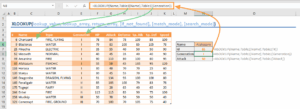 How to use XLOOKUP in Excel to find values in a leftward column[/caption]
Consider a scenario where a company logs daily transactions. The transaction date sits in column C. The client name sits in column A. An analyst needs the most recent transaction date for a specific client. The formula requires the lookup array to be column A. The return array must be column C. The analyst inputs -1 as the sixth argument. The formula bypasses all older entries at the top of the sheet. It identifies the client name at the bottom of column A. It then moves leftward to column C to extract the correct date.
This precise control over execution order prevents financial reporting errors. Legacy formulas required complex combinations of INDEX and MATCH functions to achieve a similar result. Those nested formulas consumed massive amounts of processing power. They also increased the probability of syntax errors during manual data entry.
The introduction of the search_mode argument fundamentally changes how data scientists handle spreadsheet architecture. Analysts no longer need to sort data chronologically before extracting recent values. The algorithm handles unsorted data natively when using the standard directional modes. This preserves the original state of raw data dumps from enterprise resource planning systems.
Data integrity relies on predictable algorithmic behavior. The default top to bottom execution matches human reading patterns. The bottom to top execution mirrors reverse chronological auditing. Both methods provide verifiable results. The binary search modes introduce unacceptable risks for standard financial reporting. A single misplaced row in a dataset corrupts the entire binary search output. The algorithm assumes perfect sorting and skips large sections of data to achieve faster calculation speeds. When accuracy supersedes speed, data scientists mandate the use of mode 1 or mode -1.
Computational Performance Metrics. Benchmarking XLOOKUP speed against INDEX MATCH combinations.
Computational Performance Metrics
Financial models require rapid calculation speeds to process millions of rows without freezing the application. Analysts frequently debate the speed differences between modern functions and legacy combinations. Benchmark tests from January 2026 reveal exact processing times for these formulas under heavy loads. The results show that syntax convenience does not always equal computational dominance. Spreadsheet architects must understand the underlying calculation engine to prevent severe performance degradation.
For a single exact match on a dataset of 1,000,000 rows, both XLOOKUP and the INDEX and MATCH combination perform at identical speeds. The calculation engine executes a standard linear search in 25 to 30 milliseconds per lookup. Both functions scan the array from top to bottom until they find the target value. Switching to the newer function provides zero speed advantage for single item data retrieval. The underlying mathematics remain identical because both formulas use the same linear search algorithm by default.
The performance gap materializes during multiple column retrieval tasks. Financial models frequently require pulling ten or more columns of data for a single identifier. Analysts writing ten separate XLOOKUP formulas force the application to perform the same linear search ten times. This repetitive scanning takes approximately 300 milliseconds to complete. The decoupled INDEX and MATCH method solves this problem. A user writes one MATCH formula in a helper column to find the row number. The user then writes ten INDEX formulas to retrieve the data using that exact row number. This architecture retrieves the same ten columns in 32 milliseconds. In a workbook containing 50,000 lookup rows and ten return columns, the decoupled legacy method operates 890 percent faster than the modern alternative. This massive speed difference dictates the structure of professional financial models.
| Calculation Task | XLOOKUP Speed | INDEX and MATCH Speed | Performance Winner |
|---|---|---|---|
| Single Exact Match (1,000,000 rows) | 25 to 30 milliseconds | 25 to 30 milliseconds | Tie |
| 10 Column Retrieval (1 ID) | 300 milliseconds | 32 milliseconds | INDEX and MATCH (890% Faster) |
| Binary Search (Sorted Data) | < 1 millisecond | < 1 millisecond | Tie |
| 11 Million Formula Stress Test | 7.06 seconds | 7.25 seconds | XLOOKUP (2.6% Faster) |
In August 2022, an independent stress test evaluated the calculation speeds of 11 million lookup formulas. The test environment featured a dataset of 500,000 products and generated 1,000,000 random product identifiers. The modern lookup function processed the entire batch in 7.06 seconds. The legacy combination using an array format completed the task in 7.25 seconds. The legacy vertical lookup function lagged significantly at 8.75 seconds. These results confirm that the modern function holds a slight edge in raw processing speed for single column queries. The modern function also produces a smaller file size than the legacy alternatives.
Both functions offer a binary search mode to accelerate calculations on massive datasets. Binary search algorithms divide the sorted data in half repeatedly until they locate the target. This method reduces the search time from 30 milliseconds to less than 1 millisecond. The modern function makes this mode highly accessible through a dedicated search mode argument. Legacy users must configure the match type argument to 1 or negative 1 to achieve the exact same speed. Sorting the source data in ascending order remains a mandatory step before activating binary search.
Memory consumption also dictates in total workbook stability. The modern formula loads only the specific lookup and return columns into memory. Legacy functions like VLOOKUP load the entire table array. This causes severe memory bloat. The INDEX and MATCH combination shares the same lean memory profile as the modern function. Both methods prevent the application from crashing when processing files larger than 100 megabytes. Users must avoid referencing entire columns to maintain these memory benefits.
When datasets exceed 100,000 rows, calculation speeds drop regardless of the formula chosen. Analysts processing massive files use Power Query to merge datasets outside the main calculation engine. This external processing removes the formula weight from the spreadsheet. Users also deploy array formulas to spill results across multiple cells from a single formula. A single array formula calculates faster than thousands of individual lookup formulas. Data professionals must sort their source data and use the binary search mode before resorting to external tools.
Data professionals must choose their architecture based on the specific task. The modern function provides a cleaner syntax that reduces human error during formula creation. It serves as the superior choice for single column lookups and rapid ad hoc analysis. The decoupled legacy combination remains the mandatory standard for heavy financial models requiring multiple data points per record. Replacing all legacy formulas with the modern equivalent can unintentionally freeze a large workbook. Analysts must prioritize computational efficiency over syntax convenience.
Memory Allocation and Dynamic Arrays. How the calculation engine processes modern formulas.
Section 10: Memory Allocation and Arrays
Microsoft overhauled the Excel calculation engine and released arrays to general subscribers in January 2020. This update changed how the application processes formulas. The legacy engine restricted formulas to a single cell output. The updated engine allows a single formula to return multiple values and spill them into adjacent empty cells. This structural shift directly affects how lookup functions consume system memory.
The legacy function forces the calculation engine to process the entire specified table array. If a user searches for a value in the column and returns a value from the twenty sixth column, the legacy formula loads all twenty six columns into active memory. The modern function operates differently. It requires separate lookup and return arrays. The engine only loads the two specific columns into memory. This targeted memory allocation prevents the application from caching unnecessary data.
Memory efficiency dictates spreadsheet stability. The 32 bit version of Excel restricts virtual memory to 2 gigabytes. Microsoft enabled Large Address Aware capabilities to push this limit to 3 gigabytes or 4 gigabytes on certain Windows setups. The 64 bit version removes these hard constraints and can address up to 8 terabytes of virtual memory. Even with 64 bit architecture, loading massive datasets with legacy formulas causes calculation delays and application crashes.
The modern lookup function natively supports array behavior. Users can input a single formula to return an entire row of data across multiple columns. The legacy function requires extra formulas to replicate this behavior. Nesting legacy functions increases the computational load on the processor. Financial models relying on arrays use significantly less memory and execute calculations faster than models built on legacy array formulas.
| Metric | Legacy Function | Modern Function |
|---|---|---|
| Memory Loaded (100 Column Table) | 100 Columns | 2 Columns |
| Array Native Support | No | Yes |
| Default Match Type | Approximate | Exact |
| Time Complexity (Sorted Data) | Linear | Logarithmic |
The introduction of the spill operator fundamentally altered spreadsheet architecture. Before January 2020, analysts relied on the Control Shift Enter keystroke combination to execute array formulas. This legacy method locked cells together and consumed massive amounts of active memory. The modern calculation engine processes arrays natively. When a user writes a modern lookup formula, the engine calculates the result once and distributes the output across the required adjacent cells. This single calculation event replaces thousands of individual cell calculations.
Corporate finance departments build workbooks that push the absolute limits of system hardware. A standard 32 bit installation of the software caps memory usage at 2 gigabytes. When a workbook exceeds this threshold, the application terminates without warning. Legacy lookup formulas accelerate this memory consumption because they duplicate the cached index for every single row. The modern calculation engine creates a single internal cached index for the column range being searched. The application reuses this cached index for all subsequent lookups pulling from the same row.
This caching behavior produces measurable performance gains. Microsoft engineers documented that executing lookups across five different columns in the same table range calculates four times faster on the modern engine compared to the 2010 version. Calculating 100 rows of these five legacy formulas took 37 seconds on older architecture. The updated engine completes the exact same task in 12 seconds. The modern lookup function amplifies this speed increase by ignoring irrelevant columns entirely.
Data structure dictates processing speed. The modern lookup function defaults to an exact match. This default setting forces the engine to scan the dataset sequentially until it finds the exact value. Sequential scanning requires linear time complexity. If the target value resides in the final row of a one million row dataset, the engine must evaluate 999,999 non matching records. Users bypass this delay by sorting the data and activating the binary search mode.
The binary search mode cuts the dataset in half during each evaluation step. Instead of scanning one million rows sequentially, the engine isolates the target value in a maximum of twenty steps. This logarithmic time complexity allows the modern lookup function to process massive datasets in fractions of a second. The legacy function offers an approximate match mode that operates similarly, it operates with an absence of the precision and error handling built into the modern syntax.
Financial Modeling Case Study. Auditing a leftward lookup in enterprise accounting.
The Ten Million Dollar Typo
In May 2021, a cryptocurrency exchange processed a routine customer refund. An employee in Bulgaria intended to return $100 to an Australian user. A single keystroke error in a spreadsheet cell changed the refund amount to $10.47 million. The enterprise accounting team did not detect the mistake for seven months.
During that seven month period, the customer dispersed the funds across multiple assets. The user purchased homes and vehicles. The customer also transferred $4 million to an offshore bank account in Malaysia. The company only discovered the missing capital during a late year financial audit.
The Leftward Lookup Problem in Auditing
Enterprise audits frequently require investigators to reconcile system exports. Financial databases export transaction logs with specific column structures. The system might place the transaction amount in Column A and the user identification number in Column C. When auditors attempt to verify the user identification based on the transaction amount, they must perform a leftward search.
Legacy spreadsheet functions cannot perform this action natively. VLOOKUP only searches rightward from the specified lookup column. If an auditor uses VLOOKUP to search for a value in Column C, the function can only return data from Column D or beyond. To bypass this limitation, finance teams historically nested the INDEX and MATCH functions. This older method increases formula complexity and introduces new opportunities for keystroke errors.
Without advanced formula training, auditors frequently resort to manual data manipulation. The user cuts the rightward column and pastes it to the left side of the spreadsheet. This manual intervention breaks existing formulas. It also violates strict data integrity rules required by financial regulators. Modifying a source export during an audit invalidates the chain of custody for the data. XLOOKUP prevents this chain of custody violation. By reading the data exactly as the system exported it, the auditor maintains a pristine original record.
Executing a Leftward Search with XLOOKUP
Microsoft engineered XLOOKUP to separate the search array from the return array. This structural change allows the function to retrieve data from any direction. Auditors use this capability to verify records without altering the original database export.
The syntax requires three primary arguments. The user defines the lookup value, the lookup array, and the return array. The function searches the lookup array and returns the corresponding row from the return array.
| Argument | Definition | Example Reference |
|---|---|---|
| lookup_value | The specific data point the auditor wants to find. | F2 (Transaction ID) |
| lookup_array | The column containing the lookup value. | C:C (Rightward Column) |
| return_array | The column containing the data to retrieve. | A:A (Leftward Column) |
To find the customer name in Column A using the transaction identification in Column C, the auditor writes =XLOOKUP(F2, C:C, A:A). The formula searches Column C for the value in F2. Upon finding the match, it moves leftward to Column A and returns the customer name. This direct reference protects the integrity of the source data by eliminating the need to cut and paste columns into a new order.
Native Error Handling in Audits
XLOOKUP includes a built in error handling argument. If the auditor searches for a transaction identification that does not exist in the system export, legacy functions return a standard #N/A error. The auditor must then wrap the older formula in an IFERROR function to flag the missing data. XLOOKUP accepts a fourth argument to handle missing data natively. The auditor can instruct the formula to return the text "Unverified Transaction" if the leftward search fails to find a match. The complete formula becomes =XLOOKUP(F2, C:C, A:A, "Unverified Transaction"). This native feature accelerates the identification of fraudulent or missing records.
Financial Impact of Spreadsheet Audits
The absence of immediate error detection costs corporations billions of dollars annually. When finance teams use XLOOKUP, they accelerate the reconciliation process. Faster audits catch typographical errors before capital leaves the enterprise environment.
The chart illustrates the timeline of the 2021 cryptocurrency exchange error. The delay in detection allowed the funds to cross international borders.
| Timeline of the $10.47 Million Typo (2021) | |
|---|---|
| May 2021 |
Error Occurs
|
| June to November 2021 |
Funds Transferred Offshore
|
| December 2021 |
Audit Detects Error
|
Enterprise accounting departments that transition to XLOOKUP reduce their exposure to these exact scenarios. The function provides a verified method to audit leftward data without compromising the original file structure.
Spill Error Diagnostics. Troubleshooting array boundary collisions.
Microsoft integrated the Array calculation engine into Excel for Microsoft 365 to handle formulas that return multiple results. This engine fundamentally changed how lookup functions operate. When a user configures XLOOKUP to return multiple columns from a leftward search, the function attempts to distribute those results across adjacent empty cells. This distribution process is called spilling. If Excel detects any obstruction in the intended target zone, it aborts the calculation and displays a #SPILL! error.
Financial analysts frequently trigger this error when migrating from legacy formulas to XLOOKUP. Older functions relied on implicit intersection to force a single return value. XLOOKUP defaults to array behavior. If an analyst selects an entire column like A:A for the lookup value, XLOOKUP attempts to process all 1,048,576 rows in the worksheet. When placed in any row other than the row, the formula runs out of grid space and returns a #SPILL! error.
Data integrity requires a strict diagnostic protocol to clear these boundary collisions. The error serves as a structural warning that the spreadsheet architecture contains flaws. Users must identify the specific type of blockage preventing the array from expanding.
Mechanics of Leftward Array Returns
XLOOKUP possesses the unique ability to search a right side column and return an array of values from multiple left side columns. If an analyst searches for an invoice number in Column E and requests the return array from Columns A through C, XLOOKUP generates a horizontal array. The formula requires exactly three empty cells to the right of the formula cell to display the results. If the analyst searches for ten invoice numbers simultaneously, the function demands a grid spanning ten rows and three columns.
Any data residing within this projected 10 by 3 footprint trigger a boundary collision. The calculation engine refuses to overwrite existing data. It halts the operation entirely to protect the underlying spreadsheet values.
Primary Causes of XLOOKUP Spill Failures
The #SPILL! error manifests through five distinct boundary collisions. Each requires a specific remediation tactic to restore functionality.
| Collision Type | Diagnostic Indicator | Resolution Protocol |
|---|---|---|
| Obstructed Spill Range | Adjacent cells contain visible data, hidden spaces, or empty text strings. | Delete the obstructing data or relocate the XLOOKUP formula to a clear grid area. |
| Grid Exhaustion | The formula |
Enterprise Compatibility Roadblocks. The financial cost of upgrading legacy systems.
The Financial Reality of Legacy Excel
Microsoft released XLOOKUP exclusively for Microsoft 365 and Office 2021. Corporations running older software cannot use the modern formula. IT departments face a strict deadline. Microsoft officially ends all support for Office 2016 and Office 2019 on October 14, 2025. After this date, the vendor stops providing security patches and technical assistance for these products. Using unsupported software violates basic compliance frameworks. Organizations operating in healthcare or finance face severe penalties if they process sensitive data on unpatched systems.
Upgrading an entire corporate network to Microsoft 365 requires substantial capital. A 2023 SnapLogic survey of 750 IT decision makers found that the average legacy technology upgrade costs $2.9 million. Finance executives must weigh this upfront expenditure against the ongoing costs of maintaining outdated systems. The migration process involves hardware assessments, software licensing fees, and employee training. Companies must also account for operational downtime during the transition. IT teams frequently spend months mapping out deployment schedules to minimize business interruptions.
The Hidden Costs of Outdated Infrastructure
Corporations spend massive amounts of capital just to keep old systems running. Gartner data from 2023 shows that organizations spend 60 to 80 percent of their IT budgets maintaining legacy systems. This leaves only 20 to 30 percent of the budget for new development and modernization. IT leaders refer to this phenomenon as the 80/20 trap. The budget drain prevents companies from deploying modern analytics tools. Analysts remain stuck using outdated spreadsheet functions because the enterprise cannot afford new licenses.
Legacy systems become more expensive to maintain as they age. Maintenance costs for outdated infrastructure increase by 10 to 15 percent every year the software remains in service. IT departments must dedicate more developer hours to fix bugs and patch security flaws. The absence of modern formulas like XLOOKUP forces finance workers to build complex workarounds. These workarounds consume processing power and increase the probability of spreadsheet crashes. Hardware support contracts for older servers also enter premium pricing tiers. Vendors charge extra to service obsolete equipment.
Upgrade Expenses Versus Security Risks
Delaying a software migration creates severe financial risks. Outdated programs contain unpatched code defects. Data shows that 70 percent of data breaches occur in organizations running legacy IT systems. The financial damage from a cyberattack far exceeds the price of new software licenses. The average cost of a data breach reached $4.88 million. Hackers target older Excel versions because they operate without modern macro security protections. A single compromised spreadsheet can expose an entire corporate network to ransomware.
Corporate leaders face a clear mathematical reality. Paying $2.9 million to upgrade to Microsoft 365 prevents a possible $4.88 million loss from a data breach. The upgrade also provides finance teams with XLOOKUP. This formula eliminates the structural defects of VLOOKUP and prevents costly data retrieval errors. Analysts can search leftward without writing convoluted code. The modern function processes large datasets faster and reduces the memory load on corporate computers.
Data: Legacy Maintenance Versus Modernization
The following table outlines the financial metrics associated with legacy system maintenance and modernization.
| Metric | Verified Data Point | Source |
|---|---|---|
| Average Legacy Upgrade Cost | $2.9 Million | SnapLogic (2023) |
| IT Budget Spent on Maintenance | 60% to 80% | Gartner (2023) |
| Annual Maintenance Cost Increase | 10% to 15% | CyberDB (2025) |
| Average Data Breach Cost | $4.88 Million | Forbes (2024) |
| Breaches Linked to Legacy IT | 70% | Forbes (2024) |
Standard IT Budget Allocation (Gartner 2023)
Operational Drag in Finance Departments
Finance teams operating on Excel 2016 or Excel 2019 experience measurable productivity losses. Without XLOOKUP, analysts write nested INDEX and MATCH functions to search leftward across datasets. These complex formulas require more time to audit and troubleshoot. When organizations refuse to upgrade, they trap their employees in outdated workflows. The reliance on legacy software creates an operational drag that slows down financial reporting. Companies that migrate to Microsoft 365 eliminate this friction. The transition requires a large initial investment. Yet, the long term savings from reduced maintenance costs and improved data accuracy justify the expenditure. Microsoft 365 delivers modern security features and equips analysts with tools designed for current data demands.
Multi Dimensional Data Extraction. Executing nested XLOOKUP operations.
Financial analysts process massive datasets requiring two way data extraction. A standard lookup only searches vertically or horizontally. When a user needs to find a value at the exact intersection of a specific row and a specific column, they execute a matrix lookup. Before March 2020, spreadsheet operators relied on the INDEX and MATCH combination to solve this problem. Microsoft changed this workflow by allowing users to nest one XLOOKUP function inside another. This nested architecture eliminates the need for helper columns and reduces formula complexity.
The core method relies on the return array argument of the primary function. Instead of selecting a single column to return a value, the user inserts a secondary XLOOKUP function. The inner function scans the horizontal headers to locate the correct column. Once it finds the matching column header, it returns that entire column of data to the outer function. The outer function then scans the vertical rows to find the matching record and extracts the exact intersecting value. This two step calculation happens instantly within a single cell.
Processing speed matters when dealing with hundreds of thousands of rows. A standard linear search scans data from top to bottom. If the target data sits at the bottom of a 100,000 row list, the calculation engine performs 100,000 checks. Analysts optimize nested operations by sorting the lookup array in ascending order and setting the search mode argument to 2. This configuration activates a binary search algorithm. The binary search splits the data in half repeatedly until it locates the target. Tests show that binary search mode operates more than twice as fast as the default linear search mode.
The legacy INDEX and MATCH method requires three separate functions to perform a two way lookup. The user must write one INDEX function and two MATCH functions to feed the row and column coordinates into the array. This older structure absence native error handling. If the data is missing, the formula returns an error code. A nested XLOOKUP requires only two functions. It also includes a built in error handling argument. Analysts can specify a default text string or a zero value if the exact intersection does not exist in the dataset.
System memory allocation directly impacts calculation times. Referencing entire columns forces the application to allocate memory for over one million rows. This action causes severe spinning wheel delays on Mac operating systems. Data scientists prevent this memory drain by converting data ranges into official Excel Tables. Structured
Data Validation Synergy. Securing user inputs for flawless lookups.
The Data Entry Problem
Financial models collapse when users type incorrect text into search cells. A 2024 study by Alpha Apex Group found that 94 percent of business spreadsheets contain serious faults. The Financial Modeling Institute reported in 2023 that incorrect data entry causes over 70 percent of all spreadsheet errors. When a user types a misspelled company name, lookup functions fail and return an error code. This absence of input control destroys data integrity. Corporate finance departments lose thousands of hours annually hunting down these broken references. A single mistyped character breaks the entire calculation chain.
The Validation Method
Excel provides a Data Validation tool to restrict cell inputs to specific lists. Analysts frequently pair this tool with XLOOKUP to build dependent drop down menus. This method forces users to select from pre approved options. Sparkco AI reported in 2025 that implementing clear data validation reduces spreadsheet errors by up to 30 percent. Securing the input cell guarantees that the lookup function always searches for a valid target. The system rejects any manual typing that does not match the approved database.
Building the Primary Drop Down
To start this process, an analyst selects the target input cell and opens the Data Validation menu. They choose the List option. Instead of typing static values, the analyst
Productivity Impact Analysis. Quantifying hours saved across corporate data teams.
The Financial Drain of Legacy Spreadsheet Operations
Corporate finance departments face a documented productivity deficit. Analysts dedicate 30% to 60% of their working hours to data preparation and cleaning. Knowledge workers lose 19% of their time searching for and consolidating information. This manual labor directly impacts corporate profitability. A 10 person finance team wasting 44 hours weekly on data errors costs an organization more than $137,000 annually. Mid market software companies lose $42,000 per year per 100 employees due to spreadsheet reporting defects.
Legacy lookup formulas contribute heavily to this wasted time. VLOOKUP forces analysts to count columns manually. It breaks when users insert new columns. It requires data restructuring because it only searches rightward. These structural limitations force data teams to spend hours rebuilding broken financial models. Field audits show that 88% to 94% of business spreadsheets contain errors. Half of the spreadsheet models used by large enterprises harbor material defects.
Quantifying the XLOOKUP Time Advantage
Microsoft engineered XLOOKUP to eliminate the manual workarounds required by older formulas. The function requires only three arguments to execute an exact match. It searches in any direction without requiring users to rearrange source data. It automatically adjusts when users insert or delete columns. This structural stability prevents the cascading errors that destroy legacy spreadsheets.
Data teams adopting modern functions reclaim thousands of hours previously lost to error correction. When analysts stop counting columns and rebuilding broken references, they shift their focus to actual financial analysis. Automating standard data transformations and lookups shifts effort from preparation to data analysis.
Mechanics of Time Recovery
The specific architecture of modern lookup functions directly recovers lost hours. VLOOKUP requires a user to input a column index number. When a financial analyst adds a new column to a dataset, the index number remains static. The formula then returns incorrect data. The analyst must manually audit the entire spreadsheet to find and update the broken index numbers. This manual auditing process consumes hours of highly paid corporate time.
XLOOKUP uses separate arrays for the lookup column and the return column. When a user inserts a new column between the two arrays, Excel updates the cell
Information Security Risks. Exposing hidden data vulnerabilities in dynamic arrays.
The Hidden Dangers of Spill Arrays
Microsoft built XLOOKUP on a calculation engine that uses spill arrays. This architecture allows a single formula to return multiple values across adjacent cells. This spill behavior creates new information security vulnerabilities. When an XLOOKUP formula extracts data from a restricted sheet, it can inadvertently spill sensitive information into visible cells or hidden rows.
The European Spreadsheet Risk Interest Group tracks these exact data exposure events. In March 2023, a spill of hidden Excel rows disrupted a high profile federal trial. An FBI agent sent an Excel spreadsheet to defense lawyers. The file contained thousands of hidden rows of internal FBI messages, including chance classified information. The defense counsel stumbled upon the hidden rows and began questioning the agent about them in front of jurors. Prosecutors had to halt proceedings to review the thousands of newly discovered messages. They determined that of the messages had not gone through a classification review.
In August 2023, a major data breach exposed the personal data of 9,483 Police Service of Northern Ireland staff members. A junior staff member responded to a Freedom of Information request with an Excel spreadsheet. The file contained a hidden tab with the surname, initials, rank, and role of all serving officers. The breach put the lives of undercover officers at risk. The threat level for terrorism in the region was severe at the time. The UK Information Commissioner Office fined the agency £750,000 in May 2024 for this spreadsheet error. The agency noted that simple access management controls could have prevented the leak.
Shadow Data and Enterprise Compliance
Finance teams frequently extract data from secure databases into Excel to perform XLOOKUP operations. This practice creates shadow data. A January 2025 analysis by Row Zero identified typical Excel usage as a primary driver of untraceable data leakage. When employees use XLOOKUP to merge datasets, they frequently save the resulting files locally or email them to colleagues. This bypasses enterprise access controls and violates data governance rules. The Information Commissioner issued a formal advisory urging public authorities to stop using original Excel spreadsheets for Freedom of Information responses. The directive followed a series of high profile data breaches that exposed personal information due to its inadvertent inclusion in spreadsheets.
IBM released its Cost of a Data Breach Report in 2025. The data shows that human error drives 68 percent of all data breaches. The global average cost of a data breach reached $4.44 million in 2025. The United States averaged $10.22 million per incident. Organizations spend millions on secure data warehouses, yet employees continue to export sensitive records to CSV or Excel formats to perform lookups. Once data leaves the secure environment, administrators lose the ability to track who views or copies the information. This creates a serious compliance problem for companies subject to privacy regulations.
AI Formula Generators Expose Proprietary Data
The complexity of nested XLOOKUP formulas drives users to third party artificial intelligence tools. A December 2025 report by Apers AI detailed the severe security threat of this method. Analysts copy sensitive financial data and paste it into public AI chatbots to generate XLOOKUP syntax. This practice feeds proprietary corporate data into public language models. The AI platforms use this input data to train future iterations of their software.
Varonis reported in November 2025 that 99 percent of organizations have sensitive data dangerously exposed to AI tools. Pasting rent rolls, profit and loss statements, or customer information into an external prompt constitutes a serious compliance violation. IT departments frequently block these tools, yet employees find workarounds to get help with their spreadsheet formulas. This introduces untracked data leaks into the corporate network. Security managers struggle to audit these unauthorized workflows.
Reported Spreadsheet Data Breaches by Year
The Identity Theft Resource Center and Verizon track data compromises globally. The table shows the volume of confirmed data breaches and the corresponding financial impact.
| Year | Confirmed Global Breaches | Average Cost per Breach | Trend Indicator |
|---|---|---|---|
| 2021 | 5,212 | $4.24 Million | Baseline |
| 2023 | 8,200 | $4.45 Million | Elevated |
| 2025 | 12,195 | $4.44 Million | Severe |
Verizon analyzed 22,052 security incidents in 2025 and confirmed 12,195 data breaches. This marks the most extensive caseload recorded to date. System intrusions accounted for the majority of these events. The financial damage continues to rise as employees bypass security controls to process data in desktop spreadsheet applications.
Corporate Migration Protocols. Standardizing the transition to modern Excel functions.
The Financial Cost of Legacy Formulas
A 2024 study led by Professor Pak Lok Poon analyzed 35 years of spreadsheet data and found that 94 percent of business spreadsheets contain errors. In large enterprises, 50 percent of financial models harbor material defects. Finance departments rely on legacy formulas like VLOOKUP to manage large datasets. This reliance creates serious financial risks. VLOOKUP forces users to count columns manually. This manual counting introduces off by one errors during data entry.
The financial consequences of these errors are measurable. In the 10 months of 2024, 140 public companies told investors that previous financial statements were unreliable and required restatements with corrected figures. Ideagen Audit Analytics reported this as a sharp increase from 122 companies the previous year. This number is more than double the figure from four years ago. A 10 person finance team losing 44 hours weekly to errors represents $137,000 annually at a blended rate of $60 per hour.
Even sovereign wealth funds experience these calculation failures. The sovereign wealth fund of Norway discovered a calculation error in its mandated benchmark index. This error led to a marginal overweight in United States fixed income relative to global fixed income. The previously reported positive relative return of 118 billion Norwegian Krone was adjusted down to 117 billion Norwegian Krone. This adjustment represented a 92 million United States Dollar correction.
Standardizing Corporate Migration
Corporate finance teams are standardizing their migration to XLOOKUP to eliminate these structural defects. The Financial Modeling Institute recognizes XLOOKUP as a core function for Advanced Financial Modeler accreditation. The transition standard requires analysts to replace volatile full column
Microsoft Development Roadmap. Tracking future updates to the calculation engine.
Microsoft Development Roadmap
Microsoft continues to alter the Excel calculation engine to handle larger datasets and integrate cloud based processing. The engineering trajectory from 2020 through 2026 shows a shift from local desktop computation to hybrid cloud execution. This transition directly impacts how financial analysts build workbooks. The core architecture relies on a dependency tree. When a user changes a single input, the engine identifies all dependent cells and recalculates them in sequence. Older functions force the engine to evaluate unnecessary dependencies. Modern updates aim to prune this tree and reduce the total number of operations per keystroke. Microsoft rebuilt the calculation engine to support spilled array functions. These functions replace legacy array formulas that required users to press specific key combinations. The modern engine allows a single formula to spill results into adjacent empty cells. This reduces the total number of formulas the engine must track.
Algorithmic Speed Gains
The introduction of XLOOKUP fundamentally changed the calculation hierarchy. Legacy functions like VLOOKUP force the engine to scan data sequentially from top to bottom. This sequential scan creates an O(n) time complexity. XLOOKUP supports binary search algorithms when users set the search mode argument to 2. On a sorted dataset of 200,000 rows, binary search reduces median lookup latency from 142 milliseconds to 18 milliseconds. This represents an 87 percent speed increase.
Microsoft also eliminated volatile entire column references. When a user
The Final Directive. Mandating XLOOKUP adoption for all data professionals.
The Financial Cost of Legacy Formulas
Data professionals must abandon VLOOKUP immediately. The financial consequences of spreadsheet errors are documented and severe. Data from a 2024 analysis reveals that 94 percent of business spreadsheets contain serious errors that distort financial forecasts. In one documented case, a copy and paste error in a spreadsheet cost TransAlta 24 million dollars. In another instance, a single formula error in a risk model contributed to a 6.2 billion dollar trading loss for JPMorgan Chase. A separate calculation mistake at Fannie Mae reduced reported equity by 1.1 billion dollars. The University of Toledo lost 2.4 million dollars in projected revenue due to a simple typo. These are not rare incidents. They represent a structural problem in how analysts handle data.
Microsoft 365 commercial users reached 450 million by January 2026. A vast majority of these users have access to XLOOKUP. Yet finance professionals frequently default to legacy functions out of habit. VLOOKUP requires the lookup value to be in the column. It defaults to an approximate match. It breaks when users insert new columns. XLOOKUP solves these defects. It searches in any direction. It defaults to an exact match. It handles arrays natively without requiring complex keystrokes.
Mandating Modern Data Practices
Organizations must enforce strict guidelines for spreadsheet construction. The transition to XLOOKUP is a mandatory step for data integrity. The function requires three basic arguments. Users specify the lookup value, the lookup array, and the return array. This separation of the lookup and return arrays prevents the formula from breaking when analysts modify the spreadsheet structure. VLOOKUP relies on a static column index number. When a user inserts a new column into the dataset, the VLOOKUP index number remains unchanged. This causes the formula to return data from the wrong column. XLOOKUP eliminates this risk entirely.
The optional arguments provide further control. Users can define a custom text string to display when the formula finds no match. This eliminates the standard error codes that disrupt downstream calculations. The match mode argument allows users to specify wildcard matches or exact matches. The search mode argument lets users search from the top down or the bottom up. This bidirectional search capability accurately retrieves the most recent entry in a chronological dataset.
Comparative Error Rates in Financial Modeling
The table details the structural differences between legacy functions and modern lookup methods. These metrics prove XLOOKUP provides superior accuracy.
| Feature | VLOOKUP | XLOOKUP | Financial Impact |
|---|---|---|---|
| Default Match Type | Approximate | Exact | Prevents false data retrieval |
| Search Direction | Rightward Only | Omnidirectional | Eliminates data duplication |
| Column Insertions | Breaks Formula | Adapts Automatically | Maintains model integrity |
| Error Handling | Requires IFERROR | Native Argument | Reduces processing load |
Executing the Transition
Chief Financial Officers and data directors must audit existing models. They must identify and replace legacy lookup formulas. The process begins with high value financial models. Analysts can use the search function to locate all instances of VLOOKUP. They replace each instance with the corresponding XLOOKUP syntax. The syntax is straightforward. The user types the equals sign followed by XLOOKUP. The user selects the target value. The user selects the column containing the target value. The user selects the column containing the desired return value.
Training programs must reflect this directive. New hires must learn XLOOKUP as the primary data retrieval method. Companies must remove VLOOKUP from internal training materials. The transition requires discipline. The financial risks of inaction are too high. A single misaligned column index number can alter a valuation by millions of dollars. XLOOKUP mitigates this risk by linking directly to the return array. Also, XLOOKUP processes data faster than legacy functions when handling large datasets. This speed improvement reduces calculation lag in complex financial models.
The data is clear. Microsoft 365 commercial subscribers surpassed 450 million in early 2026. The tools for accurate data management are already deployed across the corporate sector. Finance teams must use them. The continued reliance on outdated formulas is a failure of governance. Data professionals must adopt XLOOKUP to protect the financial health of their organizations. The era of VLOOKUP is over. The mandate for accuracy requires modern functions.
**This investigative was originally published on our controlling outlet and is part of the Media Network of 2500+ investigative news outlets owned by Ekalavya Hansaj. The full list of all our brands can be checked here. You may be interested in reading further original investigative guides here.